The deals board
Add deals, move them stage by stage, mark them lost, filter by owner, switch to a table, and read what each card tells you.
Updated 11 Nov 2026
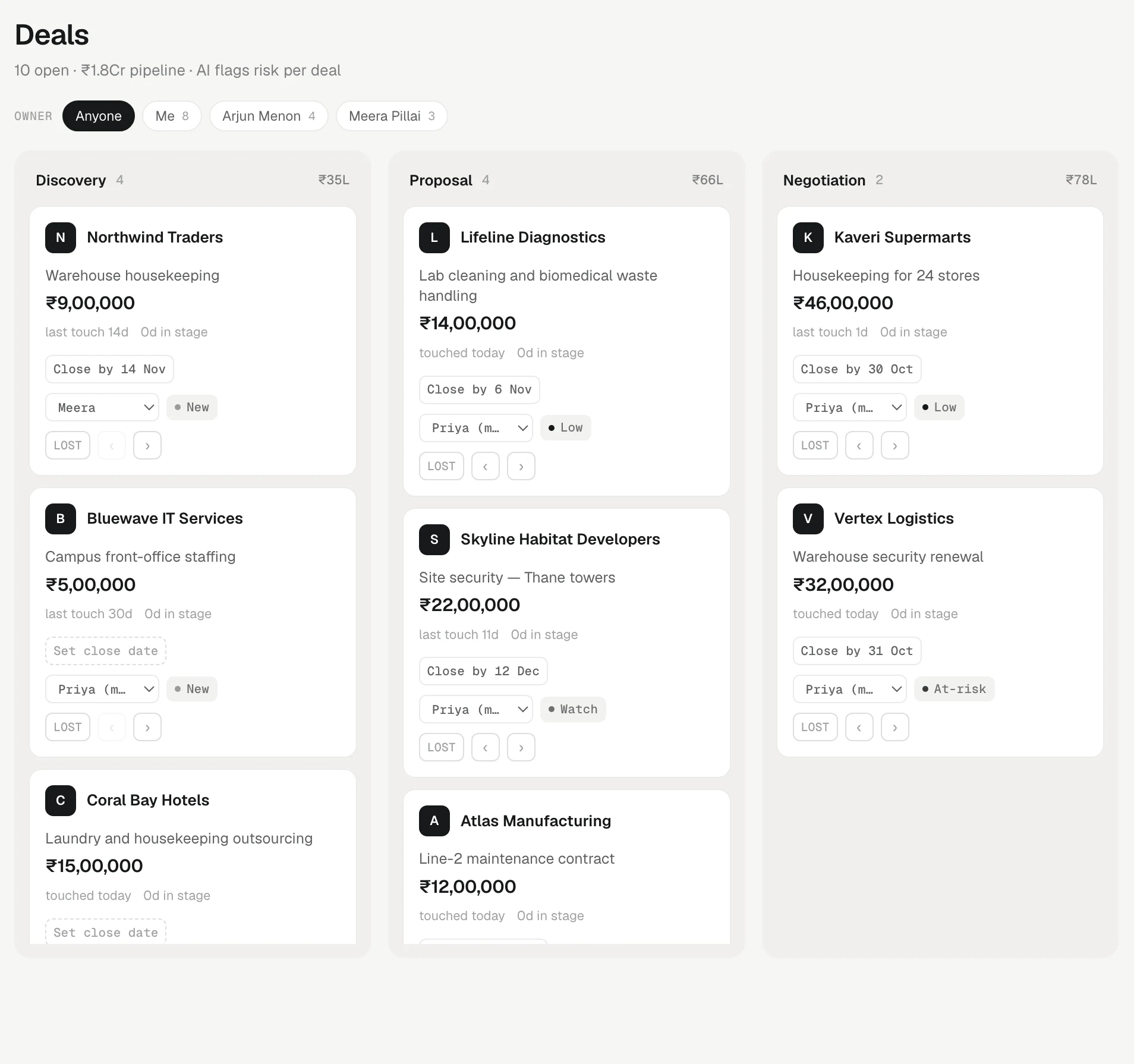
Deals shows your pipeline as a board: one column per open stage, one card per deal. The header counts open deals and the total open pipeline, and each column shows the money sitting in it.
On a computer, the closed stages (such as Won, Delivered and Lost) share one Closed column on the right. It lists each closed stage with its count and value; press Show to see the cards and Hide to fold them again. When no deal is open, the header reads No open deals and the Closed column opens on its own. On a phone, every stage, open or closed, is its own tab above the list.
Add a deal
The new-deal form takes an optional Close by date. You can also ask the AI assistant: "set the Mehta deal's expected close to end of November".
On the board:
- Press + New deal.
- Pick the Company…, type a Deal title such as Annual poplin order, and the value. Type the value the way you say it: 250000, 3,00,000, 2.5L, 5 lakh, 1.2Cr or 50k all work. If KretaOS can't read it as an amount, it asks you to retype it instead of saving a wrong number.
- Press Add to Discovery (or whatever your first stage is called). The deal lands in the first stage; move it later.
On a client's page, the Deals tab has + Add deal with the same fields plus the stage and, when you have more than one, the pipeline.
Read a card
Each card shows:
- the client, the deal's title and the value — so two deals for one client are easy to tell apart,
- last touch 4d (or touched today or never contacted): whether anyone is talking to them,
- 8d in stage: how long it has sat in this column,
- a risk chip: Low, Watch, At-risk or New. See Deal risk,
- the owner, as their initials. On a team, press the initials to hand the deal to someone else.
- Close by 12 Nov — the expected close date. Press it to set or change the date; it reads Set close date until one is chosen, and Overdue since … in red once that day has passed on an open deal. The Analytics forecast places the deal in that month.
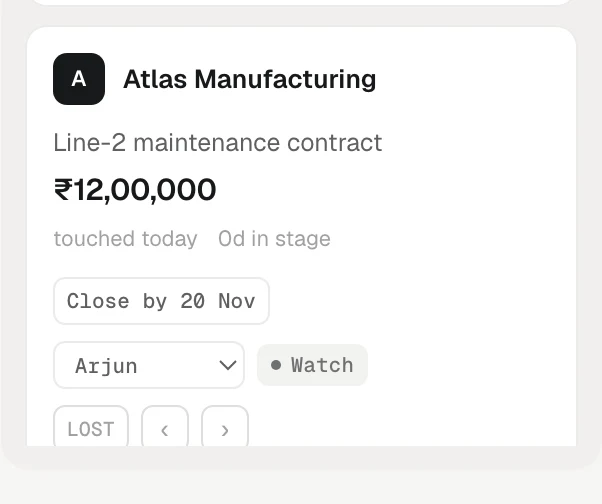
Click a card to open the client.
Press Compact above the board for one line per deal — title, value, close date and owner — when a stage holds more deals than fit on the screen. Press it again for full cards.
Move a deal
Each card has a ⋯ button (More for this deal). It names the stages, so you always know where a move goes:
- Advance stage to … moves the deal one stage forward.
- Move back to … moves it one stage back.
- Change owner hands it to a teammate.
- Mark lost (it carries your lost stage's name) marks an open deal lost. Lost sits off the forward path and only in this menu, so a stray click never loses a deal. Move back on a lost deal reopens it.
With a mouse, ‹ (Move back) and › (Advance stage) also appear on a card when you point at it — a shortcut for the same two moves. On a phone or tablet, use ⋯.
Every move is recorded with the day it happened, which is how analytics knows when revenue was won and how long deals sit in each stage.
Moving a lead's deal to won turns the lead into a client. Adding a deal to a new or contacted lead makes it qualified.
On a team
- Owner above the board filters it: Everyone, Me, My team (when people report to you — your deals and theirs), or one person, each with a count. With a long team list, type a name to find them. The totals and Export follow the filter.
- Press a card's initials, or ⋯ › Change owner, to hand the deal to someone. Handing a deal to someone rings their bell.
Board or table
Press Table above the board to see every deal of this pipeline as one row: deal, client, stage, value, expected close, owner, risk and last touch. Press a column heading to sort by it; press it again to reverse. A value sort keeps each currency together — rupees and dollars are never compared or added. Click a row to open the client. The owner filter and the pipeline tabs work the same way, and the table remembers its sort in the page address, so a link you share opens the same view. Press Board to go back.
Several pipelines
When your workspace has more than one pipeline, a tab for each sits above the board. A deal moves only between the stages of its own pipeline. See Pipelines and stages.
Old closed deals
Won, delivered and lost deals that closed more than a year ago are hidden to keep the board readable. A line under the columns says how many; press Show to bring them back and Hide them to tuck them away. They are never deleted, still appear on the client's page, and still count in every analytics figure.
On a phone
Columns become tabs across the top, one stage at a time. In Table, each deal is a two-line row (title and value, then client, stage and close date) with a Sort box above.
Edit a deal
Open the ⋯ menu on a card, a table row or a deal on the client's Deals tab to change its title or value by hand. When you filter the board by owner and nothing matches, it says so and offers to show everyone's deals.
Related
- Pipelines and stages — The two ladders KretaOS runs (where a lead is, and where the money is), and how an admin names stages and adds pipelines.
- Deal risk — What the Low, Watch, At-risk and New chips on a deal mean, what KretaOS looks at, and when the chip is updated.
- Clients, leads and partners — The four kinds of record on the Clients page, the statuses each one moves through, and how a lead becomes a client.
- The deals board — Read the board at a glance, add a deal, move it from its ⋯ menu, mark it lost, narrow it to one person's deals, and switch to a table.
Or write to contact@tamkis.com