Import clients from CSV or Excel
Bring your existing client list into KretaOS from a spreadsheet. KretaOS maps the columns, you review, and every import can be undone.
Updated 9 Oct 2026
Most teams arrive with a client list in a spreadsheet, an old CRM export or a sheet someone kept by hand. Import turns that file into clients, contacts and memory in a few minutes — without retyping anything.
Before you start
- You need to be an Admin. Other roles see "Only workspace admins can import client data."
- The file can be a CSV or an Excel (.xlsx) file, up to 8 MB. Up to 5,000 rows are read from one file.
- One row per client works best. A column with the company name is the one that matters most.
Import a file
- Go to Settings › Import.
- Drop your file on Drop a CSV or Excel file, or click to browse.
- KretaOS shows Reading your file… while it works out which column is which.
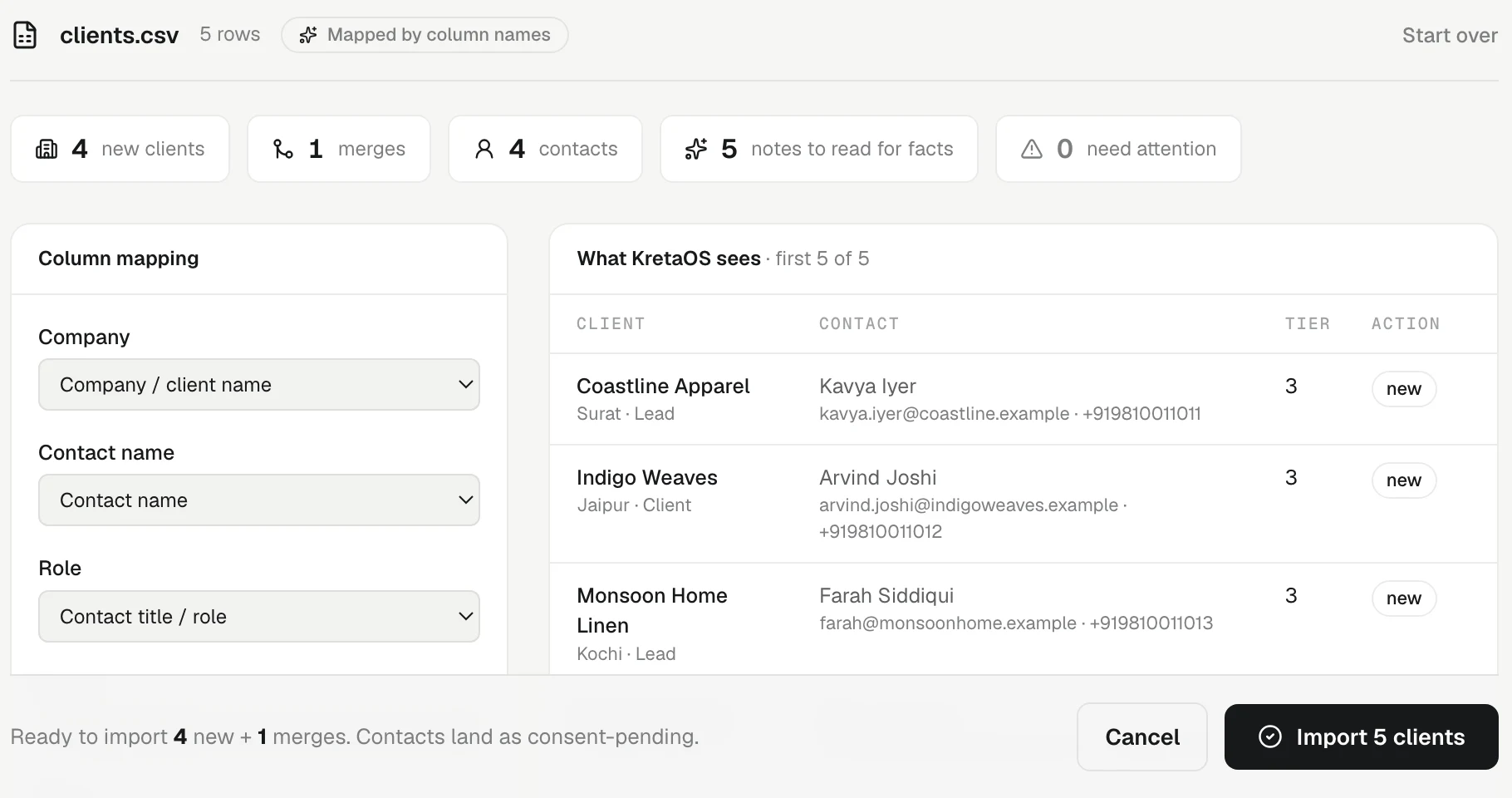
- Check the review screen (below). Change any column that was mapped wrongly.
- Click Import — the button shows how many clients will be brought in.
- You see Imported into your book with counts of clients, contacts, people and facts. Click View clients to see them. If every row matched a client you already have and nothing new was added, you see Nothing new to add instead.
The review screen
- Summary chips — how many new clients, merges (rows that match a client you already have), new contacts (a contact already on the client isn't counted), notes to read for facts, and rows that need attention. When AI is unavailable the notes chip reads notes kept for later.
- Column mapping — every column in your file and the KretaOS field it feeds. See Column mapping.
- What KretaOS sees — a preview of the first rows as they will land: client, contact, tier, and the action — new, merge or skip. A warning sign marks a row with a problem, such as an email that looks malformed or a row with no name.
What happens to each row
- New creates a record. You become its owner. If your sheet has a type column ("Type" or "Kind"), each row lands as the client, lead or partner it says; see Column mapping.
- Merge adds the row to the client you already have with that name. It fills in empty fields and adds tags, but never overwrites anything you already entered, and never changes the tier or stage.
- Skip — a row with no company or person name is left out.
- A contact who is already on that client (same email, WhatsApp number or name) is not added twice, so importing the same file again is safe.
- A Notes column is read for facts — preferences, needs, dates — which land in each client's memory. This runs on up to 200 rows per import. The notes are also kept on each client's About. If AI is unavailable, the notes are read into memory once it's back.
Messaging imported contacts
You can message an imported contact as soon as the import finishes, on any email address or WhatsApp number that came with them. If someone on the sheet has asked not to be contacted, record the opt-out on their page and KretaOS will never send to them there. See Consent.
Related
- Column mapping — How KretaOS decides which spreadsheet column is the company, the contact, the tier and the notes — and how to correct it before you import.
- Undo an import — Take back a whole import in one click — as long as nobody has started working on those records yet.
- Duplicates and merge — How KretaOS spots a record entered twice, why it never merges on its own, and what happens when an admin merges two records.
- Bring your clients in — Add a client from one sentence, fill the details by hand, or import your whole book from a spreadsheet.
Did this answer it?
Or write to contact@tamkis.com