Automations
Let KretaOS do the routine follow-through — re-warm cooling clients, nudge after a proposal, share new leads.
Updated 9 Oct 2026
An automation is a small rule: when something happens, do a few steps. "When a deal moves to Proposal, wait a day, draft a nudge and wait for my approval." KretaOS watches for the moment and does the work, so follow-ups stop slipping.
Find them
Open Settings and choose Automations, or go to Automations directly. The header shows how many are live, how many runs happened this week (and how many of them failed), and how many drafts are awaiting you. Each automation's card counts its runs the same way, for example "12 runs · 1 failed".
If your plan does not include automations, the page says so and shows the plans.
Create one
Press New automation. You have three ways to start:
- Describe it. Write what you want in a sentence, such as "When a new lead comes in, share it between Ravi and Priya and remind the owner to call tomorrow", and press Build it. KretaOS builds it and opens it paused, so you can check it before it runs.
- Start from a template: Re-warm cooling clients, Follow up after a proposal, Pre-draft replies to inbound, Chase overdue follow-ups or Daily pipeline pulse.
- Blank. Build it step by step yourself. It starts with no steps, and it can't be turned on until you add one and save.
The builder
Every automation opens in the builder, a row of cards from left to right:
- The trigger card, "when does this run?" See Triggers.
- One or more steps. Press + Add step to add one, click a card to edit it, and use × to remove it. See Steps.
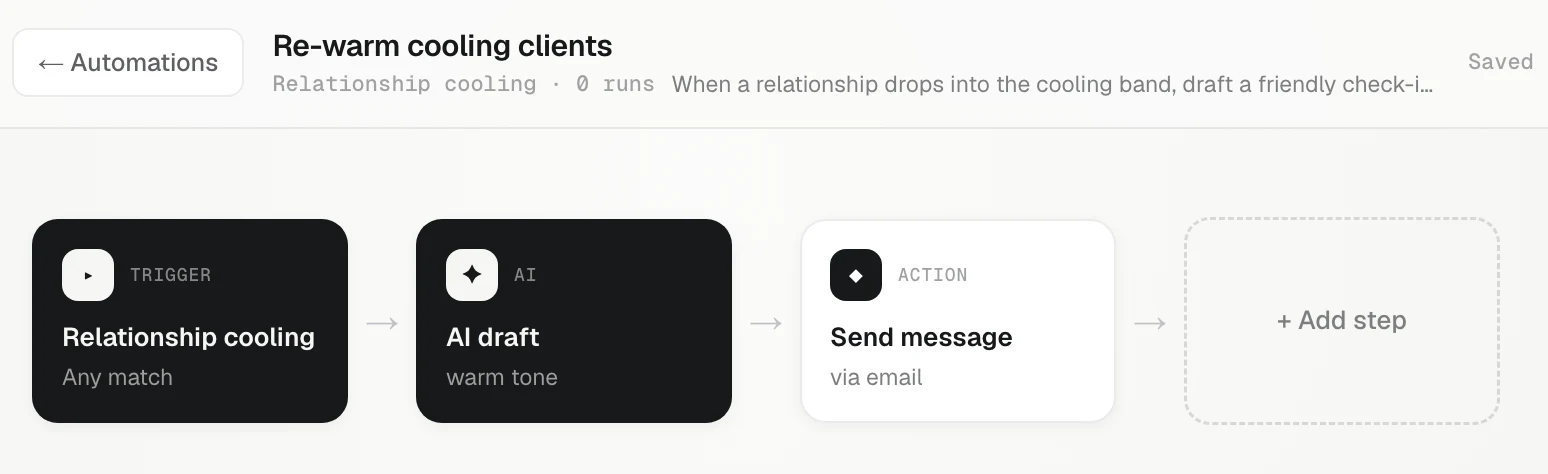
Give it a name and a short description, then press Save. The switch beside Save turns it on (ACTIVE) or off (PAUSED).
Run now runs it once straight away, so you can test it end to end.
See what it did
Under Recent runs, each run shows its status (Success, Needs approval, Waiting, Skipped, Failed) and the client. Open a run to read what each step did, in plain words, and how long it took.
Suggestions from KretaOS
Each week KretaOS looks for patterns in your team's activity that an automation could take over, and may show one as a suggestion card. Press Build it to create it, or Dismiss. Press Scan for patterns to look again now.
Archive or delete
- Archive stops it running and moves it to the Archived shelf. Restore brings it back, paused.
- Delete removes it for good, along with its run history. KretaOS asks you to confirm.
Good to know
- Sends wait for approval by default. What an automation may send on its own depends on your workspace's AI autonomy.
- Every send passes the checks. An opt-out, quiet hours and the daily limit apply to automations exactly as to you.
- Viewers cannot create or change automations.
Related
- Triggers — The trigger is the "when" of an automation. Here is every trigger KretaOS offers and when each one fires.
- Steps — What each automation step does — wait, check a condition, draft with AI, send, create a task, notify, fill fields and more.
- How much the AI does on its own — Suggest only, Draft & wait or Auto-send — one workspace setting decides whether automations only suggest, draft for approval, or send.
- Automations — Let KretaOS do the repeat work — chase overdue follow-ups, re-warm quiet clients, share new leads — with every send under your control.
Or write to contact@tamkis.com