Steps
What each automation step does — wait, check a condition, draft with AI, send, create a task, notify, fill fields and more.
Updated 4 Nov 2026
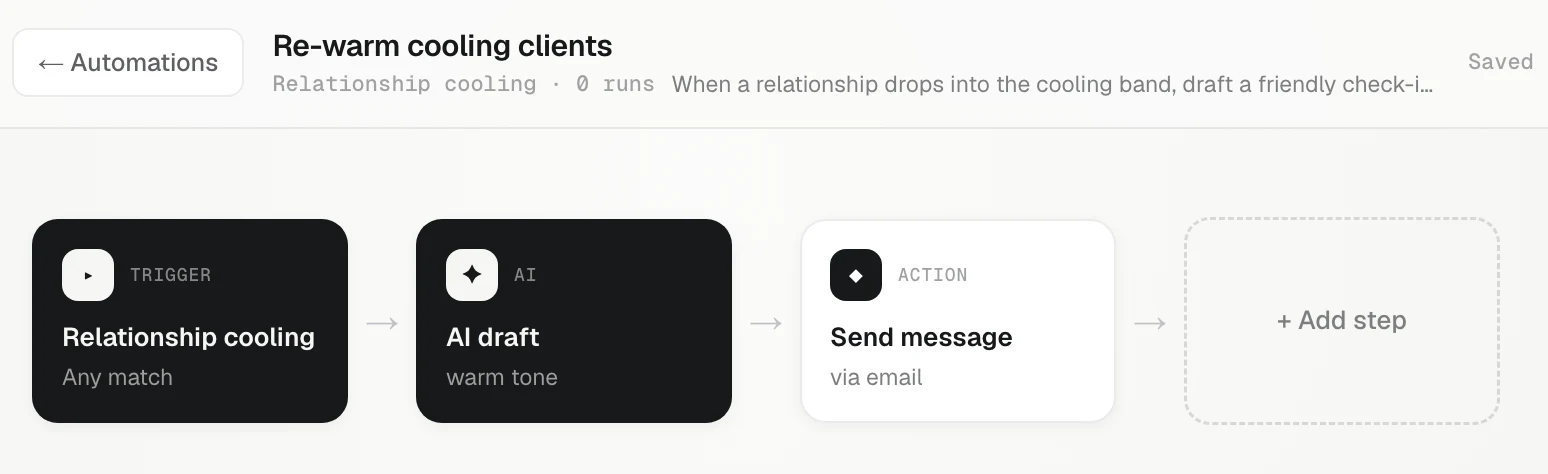
After the trigger, an automation runs its steps in order, left to right. Press + Add step to add one and click a step's card to set it up. An automation can have up to twelve steps.
Timing and logic
- Wait: pause before the next step, in Days and Hours. "Wait 1 day" after a proposal gives the client time to read it.
- Condition: continue only when a detail matches. Pick the Detail to check — such as the client's status, tier or industry, the deal's stage or value, or one of your own fields — pick how to Check it (is, is not, more than, less than or contains) and type a Value. More than and less than need a number; a deal's value is the whole amount. If it does not match, the run stops there and is marked Skipped.
Messages
- AI draft: drafts a message for the client from what KretaOS knows about them. Pick a Tone: friendly, warm, professional, direct or concise.
- Send message: sends by Channel, email or WhatsApp. With an AI draft step before it, it sends that draft. Without one, write the Message yourself (and a Subject for email). Use Insert to add details such as the person's first name or the company — they are filled in for each client. If a detail is missing for a client, nothing is sent and the run says which one. You can Attach from Library; email carries the file, while WhatsApp (or a file over 25 MB) sends a tracked link.
- A WhatsApp template on a send: WhatsApp only lets a business write first, or write again once the client hasn't messaged in 24 hours, with a template approved on your number. On a WhatsApp send, pick one of your team number's approved templates and fill in each of its details — the same details you can insert in a message, such as the first name. While the client's 24-hour window is open, your message is sent; once it has closed, the template goes instead. A template can't carry files.
What happens to a message depends on your AI autonomy: a bell suggestion, a draft waiting for approval, or a send. Every send passes the opt-out, quiet-hours and daily-limit checks.
Tasks and alerts
- Create task: files a follow-up for the client's owner, with a Task title and Due in (days).
- Notify: rings the bell with an Alert title you write.
Filling your fields
These work with your own client fields (see Custom fields):
- AI classify: picks a value for a Pick one field, with optional guidance under How to decide, such as "Hot = asked for a quote this month".
- AI summarise: writes a short summary into a Text field.
- Set a field: writes a fixed value into a client field, checked the same way as when a person types it.
The AI steps use what KretaOS knows about the client. If they cannot tell, they write nothing and the next steps still run. Every field change is recorded in the audit log.
A repeating question
- Ask AI question: asks Ask AI a Question on the automation's schedule and sends the answer to Your bell, or Your bell and email. It is made from an answer with Repeat this… (see What Ask AI can do); you can change the question here. It runs as the teammate who set it up, can only read, and uses one AI credit each time. If AI is paused or the credits have run out, the run is skipped and your bell says so once.
Owners and other apps
- Assign owner: shares new clients between teammates in turn. See Share new leads in turn.
- Web request: sends the client to another app, such as a Zapier hook. Admins only. See Leads from a form or app.
Fill in details with variables
Titles, alert text and web request bodies can include details from the run in double braces:
| Variable | Fills in with |
|---|---|
{{client.name}} | The client's name |
{{client.owner}} | The client's owner |
{{contact.name}}, {{contact.email}}, {{contact.phone}} | The person on the run |
{{deal.title}}, {{deal.stage}} | The deal on the run |
{{field.<key>}} | One of your own fields |
Only the teammate who made an automation, or an admin, can change it, turn it on or off, archive it or delete it. Everyone else can open it and see its runs.
Related
- Triggers — The trigger is the "when" of an automation. Here is every trigger KretaOS offers and when each one fires.
- Share new leads in turn — Use the Assign owner step to hand each new client or lead to the next teammate in turn, so enquiries are shared fairly and nobody is missed.
- How much the AI does on its own — Suggest only, Draft & wait or Auto-send — one workspace setting decides whether automations only suggest, draft for approval, or send.
- Leads from a form or app — Give an automation its own web address so your website form, Zapier, Make or IndiaMART can post enquiries as leads.
Or write to contact@tamkis.com