Automations
Let KretaOS do the repeat work — chase overdue follow-ups, re-warm quiet clients, share new leads — with every send under your control.
Lesson 3 of 5 4 minUpdated 9 Oct 2026
An automation is a rule: when something happens, do these steps. They live in Settings › Automations. Any teammate who can edit records can build one; this lesson is in the admin course because two settings that govern every automation are yours.
First, decide how far the AI may go
On Settings › Workspace, under AI autonomy, you choose one of three modes for the whole workspace:
- Suggest only — KretaOS only suggests. No drafts are written, nothing is sent.
- Draft & wait — the default. Automations write the message and park it for a person to approve.
- Auto-send — approved automations can send on their own, within your rules.
Whatever the mode, every send still passes the same checks: that the client has not opted out, quiet hours in the client's own timezone, and the daily limit on how many messages one client gets. A send that fails a check is held, nothing goes out, and the reason is shown in plain words.
Start on Draft & wait. Move to Auto-send only for automations you have watched for a few weeks.
Build one
On the Automations page, press New automation. You have three ways in:
- Describe it — write what you want in a sentence, such as "When a new lead comes in, share it between Ravi and Priya and remind the owner to call tomorrow", and press Build it. It opens paused, so you check it before it runs.
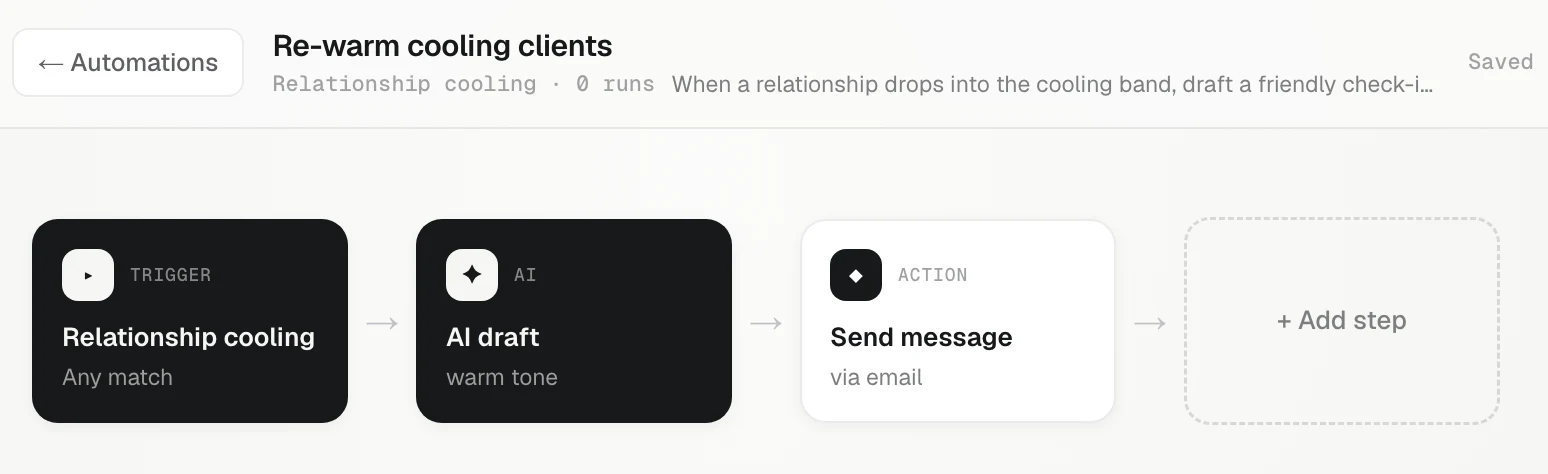
- Or start from a template: Re-warm cooling clients, Follow up after a proposal, Pre-draft replies to inbound, Chase overdue follow-ups, Daily pipeline pulse.
- Blank — build it step by step. It starts empty and can't be turned on until it has a step.
Triggers and steps
A trigger is the "when". The common ones: Relationship cooling, Deal changes stage, Client replies, Follow-up goes overdue, A new record is added, A field changes, and schedules — Every day, Every Monday, On the 1st of the month.
Steps are the "do": Wait, Condition, AI draft (a message written from the client's memory), Send message, Create task, Notify, Set a field, and Assign owner, which shares new clients between teammates in turn — the fair way to hand out inbound leads.
Two pieces are for admins only: the A form or app sends a lead trigger, which gives the automation its own web address for your website form or lead source, and the Web request step, which sends a client to another app.
Turn it on, watch it, approve
Press Save, then flip the switch from PAUSED to ACTIVE. Run now tests it end to end. Each run is listed with its result: Success, Skipped, Failed, Waiting or Needs approval.
Drafts waiting for a person appear at the top of the Automations page as "Draft ready to send", with Approve and Dismiss.
Not sure what to automate? Scan for patterns looks at your recent activity and suggests an automation you could build.
Try it
- Open Settings › Automations and press New automation.
- Start from Chase overdue follow-ups and read each step.
- Press Save, switch it to ACTIVE, and press Run now.
- Check the top of the Automations page for anything waiting for your Approve.
Related
- Workspace settings — A tour of Settings — You (profile, alerts) and Workspace (name, timezone, AI autonomy, data and consent), and where the rest lives.
Or write to contact@tamkis.com