Your profile, name and photo
Change the name and photo your team sees, and the voice the AI assistant speaks in.
Updated 8 Oct 2026
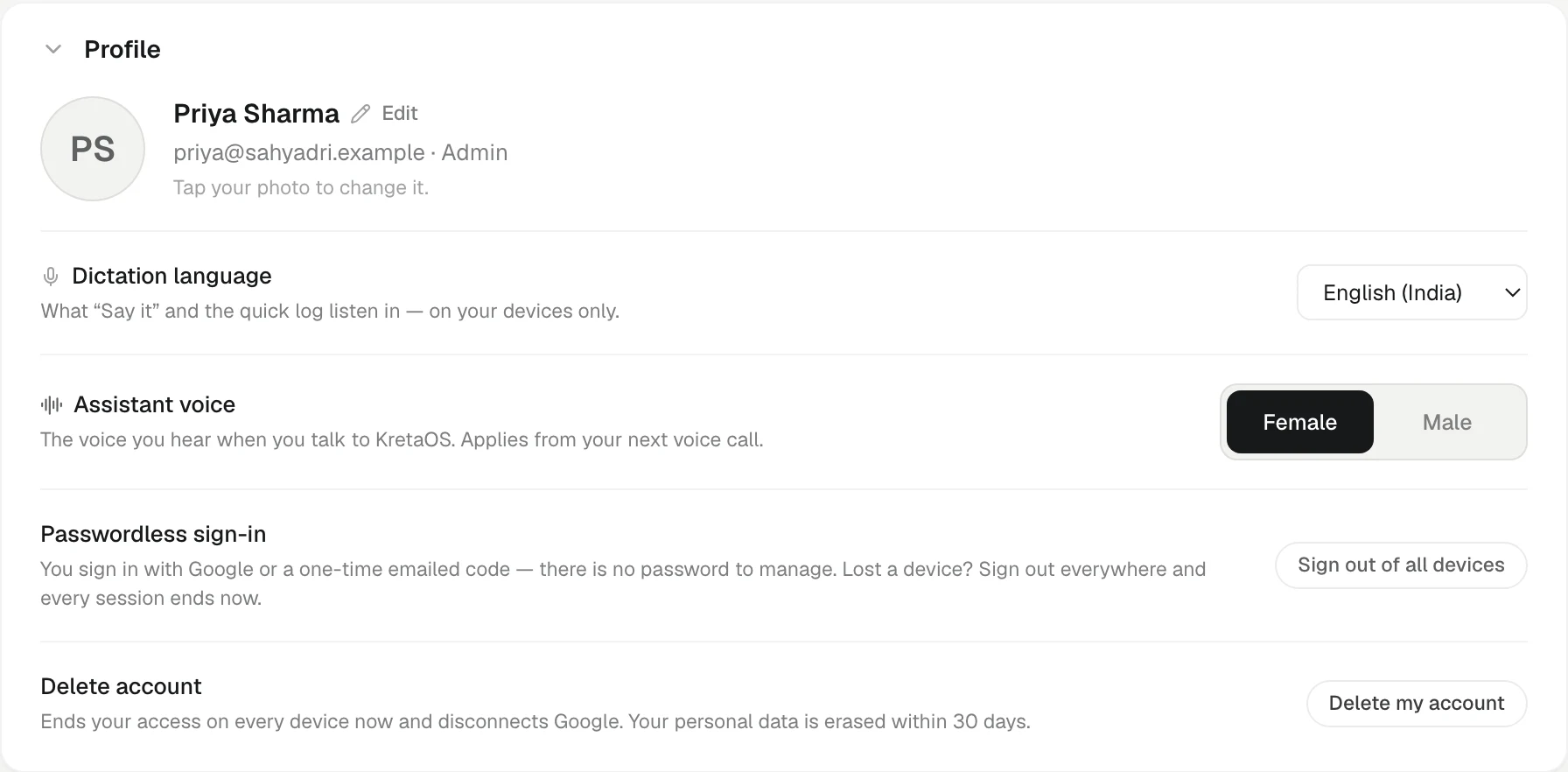
Your profile is the first card on Settings › You (on a phone, the Profile & alerts row at the top of Settings). It shows your name, your role and the email you sign in with.
Change your name
- Open Settings (on a phone, then tap Profile & alerts).
- In Profile, click your name.
- Type the new name and press Enter.
Your name appears to teammates on the Team page, on client pages ("Owned by…"), in comments and mentions, and in the bell. The sign-off at the end of drafts comes from My card on the Company page — see Company memory.
Add or change your photo
- In Profile, click your picture (or your initials).
- Choose an image.
KretaOS shrinks the picture for you. If it is still too big, you will see "Image is still over 200KB — try a smaller one". Your photo shows next to your name across the app.
The email you sign in with
Your sign-in email is fixed to your account and cannot be edited here. KretaOS has no passwords: you sign in with Google or with a one-time code sent to that email. If you need a different address, ask an admin to invite the new address; see Invite a teammate.
Assistant voice
Under Assistant voice, pick Female or Male. This is the voice you hear when you talk to KretaOS by voice. It is your own choice — teammates pick their own — and it applies from your next voice call.
Dictation language
Also on this card: the language KretaOS listens in when you dictate. See Dictation language.
Security
At the foot of the card:
- Sign out of all devices ends every session you have, everywhere. See Sign out everywhere.
- Delete my account starts closing your account. See Delete my account.
Related
- Dictation language — Choose the language KretaOS listens in when you dictate a log, including Hindi, Hinglish and seven more Indian languages.
- Sign out everywhere — Lost a phone or laptop? End every KretaOS session you have, on every device, in one tap.
Or write to contact@tamkis.com