Record a meeting
Record an in-person or phone meeting in your browser. KretaOS writes the transcript and notes and puts them on the client's page.
Updated 9 Oct 2026
Put your phone or laptop on the table, press Record, and talk. When you stop, KretaOS writes a transcript and clean notes, picks out promises and next steps, and files it all on the client's page. Nobody types minutes.
Start recording
Press Record wherever you see it:
- the red dot beside Log in the top bar
- Record meeting in the Log sheet
- the Meeting tab of Log activity on a client's page ("In the meeting right now?")
- Record meeting on the Recordings page
Unless your admin has turned it off, a short sheet asks you to Let the others know you're recording. Tick They know I'm recording, then press Start recording. This shows every time, so asking becomes a habit.
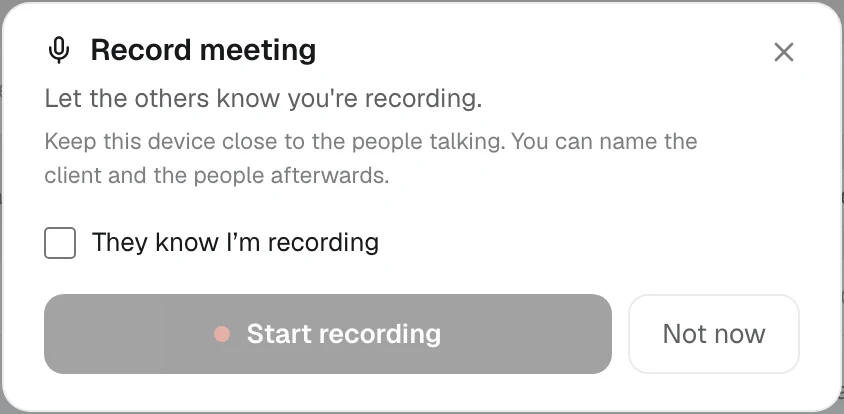
The first time, your browser asks to use the microphone. Allow it. If it can't start, KretaOS says why in plain words: no microphone found, the microphone blocked for this site, or the microphone busy in another app.
One microphone, one job: you can't start a recording during a voice call with the AI assistant, or a voice call during a recording. KretaOS asks you to end the one that is running first.
While it records
A dark pill in the top bar shows a red dot, the time and a sound meter. You can:
- Pause and resume
- move between pages in KretaOS; the recording carries on
- press Stop when the meeting ends
The audio is saved on your device in 30-second pieces and uploaded as you go. If the connection drops, KretaOS keeps recording and says "Waiting for the network — the audio is saved on this device", then catches up. A bad network does not lose your meeting.
Keep the tab open
In a browser, the recording lives in that tab. KretaOS reminds you when you start: "Recording in this tab. Keep it open — closing it ends the recording." Your browser also asks before you close it.
For a long meeting on a computer, keep the recording tab open until you press Stop. KretaOS shows a reminder under the top bar while a recording is running.
On a phone, keep the screen on
In a phone's browser, recording stops while the screen is locked. For the whole recording, a line under the pill says: "Keep the screen on — if the phone locks, recording stops. For a long meeting, record from the KretaOS app." The app records with the screen off.
If the screen did go off, or the microphone was cut, the pill says so as it happens, for example "Recording paused while the screen was off — 6 min not captured". Those minutes are not in the recording and are not charged. The recording page then tells you how much was really captured; see The Recordings page.
When you stop
A sheet opens: Recorded with the length, and "Writing it up now." Add a Title, pick the Client ("Which client was this with?") and tap Who was there. Press Save (it reads "Save · lands on client" once you pick one), or Later to do it from Recordings. See Attach a meeting to a client.
If something goes wrong
- The tab closed or the battery died. Open KretaOS again on the same device. It offers "Unfinished recording … keep it?" Press Keep to upload what is left.
- Nobody pressed Stop. KretaOS saves what reached it, about an hour after the tab closed (or two hours after the last piece arrived), writes the notes and sends you a bell.
- "This browser can't record audio." Use Chrome or Safari.
Credits
A recorded meeting uses one AI credit for every five minutes recorded, charged once when the notes are written. Minutes the device did not record, such as while the screen was off, are not charged. If you are out of credits, the recording waits safely and the notes start on their own once credits are added.
Related
- Transcript and speakers — Read the notes and transcript of a recorded meeting, name who is speaking, and fix a line that went to the wrong person.
- Attach a meeting to a client — Choose the client once and the meeting lands on their page as a single entry, with its notes, facts, promises and follow-ups.
- AI credits explained — What uses an AI credit, what never does, and what happens when your team's credits for the month run out.
Or write to contact@tamkis.com