Consent, quiet hours and the daily limit
Three checks run before any email or WhatsApp leaves: that they have not opted out, their local time, and today's count.
Updated 13 Nov 2026
Every message KretaOS sends, whether you press Send or an automation does, goes through three checks first. They protect your clients from unwanted messages and your team from mistakes. The composer shows them as three chips: Their OK, Quiet hours and Daily limit.
Their OK (consent)
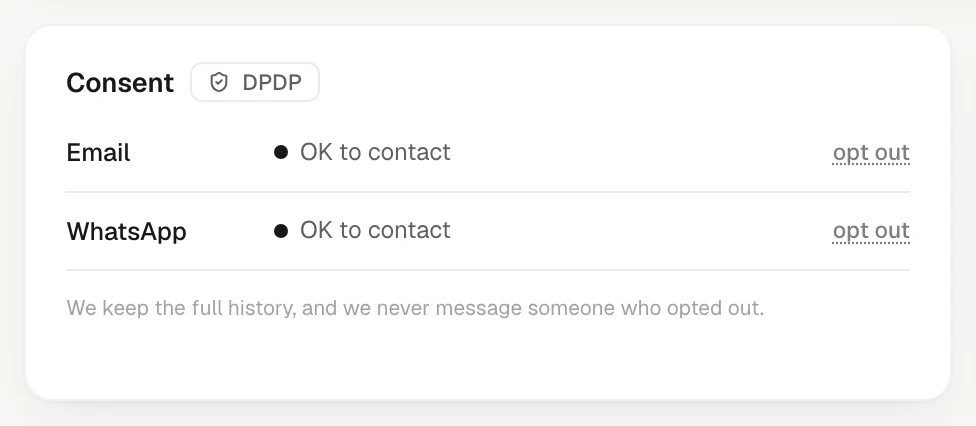
Once a person's email address or WhatsApp number is on their record, you can message them there. You do not have to tick anything first. The one thing that stops a send is an opt-out: if they asked not to be contacted on a channel, KretaOS never sends there. Email and WhatsApp are kept separately.
Each person's page shows a consent row per channel:
| Status | Meaning |
|---|---|
| OK to contact | Their address is on file and they have not opted out. Sends can go. |
| Confirmed | Their yes is recorded. Sends can go. |
| Opted out | They asked not to be contacted there. KretaOS won't send. |
| No address yet | There is no email or number to send to. |
To stop messages to someone, press opt out on that channel and confirm with Yes, stop. If they later agree again, press allow again. When a client replies STOP or Unsubscribe on WhatsApp, KretaOS records the opt-out by itself. Every change is kept as a dated record, never overwritten. See all of them on Settings › Compliance.
If your team needs a recorded yes for every message
An admin can turn on Require recorded consent in Settings › Workspace, under AI autonomy. With it on, a message goes only to someone whose status is Confirmed; everyone else shows Not confirmed yet until you press record their yes on their page. It is off unless an admin turns it on.
Quiet hours
No message goes out during your workspace's quiet hours, measured in the client's own time zone. A client in Dubai gets your message in Dubai's daytime, not yours. If a client has no time zone set, your workspace's time zone is used.
A person can still send one message through quiet hours when it can't wait: press Send anyway under the hold, then Yes, send now. The message is marked as sent inside quiet hours. Automations never do this — they wait until quiet hours end in the client's own time zone — and an opt-out or the daily limit can't be sent through.
Quiet hours start at 9 PM and end at 8 AM until an admin changes them. An admin sets the window in Settings › Workspace, under AI autonomy: pick the hours next to Quiet from and to. The window can run past midnight, like 10 PM to 7 AM, but it can't start and end at the same hour. Respect quiet hours in the same place switches the check off. Members see the window marked Set by your admin.
Daily limit
A person can receive up to three messages from your team in one day, counted across the whole team, until an admin changes it. An admin sets the limit in Settings › Workspace, under AI autonomy: type a number from 1 to 20 next to Daily limit. It applies to every send, including automations, so nobody gets more than that many messages in a day whatever is running. Hover over the Daily limit chip in the composer to see the count so far; a chip turns red when its check would stop the send. The count starts fresh each morning.
When a check fails
Nothing is sent and nothing is written to the client's timeline. KretaOS tells you which check failed and how to fix it, and keeps your draft. See Why a send was held.
Related
- Why a send was held — When KretaOS stops a message, it says which check stopped it, that nothing was sent, and the one step that fixes it.
- Consent and the DPDP Act — A dated consent record per contact and channel: opt-outs are always honoured, and a recorded yes can be required.
- How much the AI does on its own — Suggest only, Draft & wait or Auto-send — one workspace setting decides whether automations only suggest, draft for approval, or send.
- What is remembered from chats — How KretaOS turns WhatsApp conversations into client memory, leads and closed follow-ups, and what it deliberately ignores.
Or write to contact@tamkis.com