Tasks and reminders
Jot a follow-up or reminder in plain words; KretaOS works out the client, the day and the time, and shows you what it filed.
Updated 4 Nov 2026
Agenda is where everything you owe lives. Its views are Tasks (follow-ups, to-dos and reminders), Promises and Calendar; a Team view (messages from your team list) appears once that list has people. On Tasks, the switch at the top reads Mine, Handed off (tasks you gave a teammate, and tasks you follow) and Everyone (an admin) or My team (a manager). A task someone gave you reads from Subham under its title. This article is about Tasks.
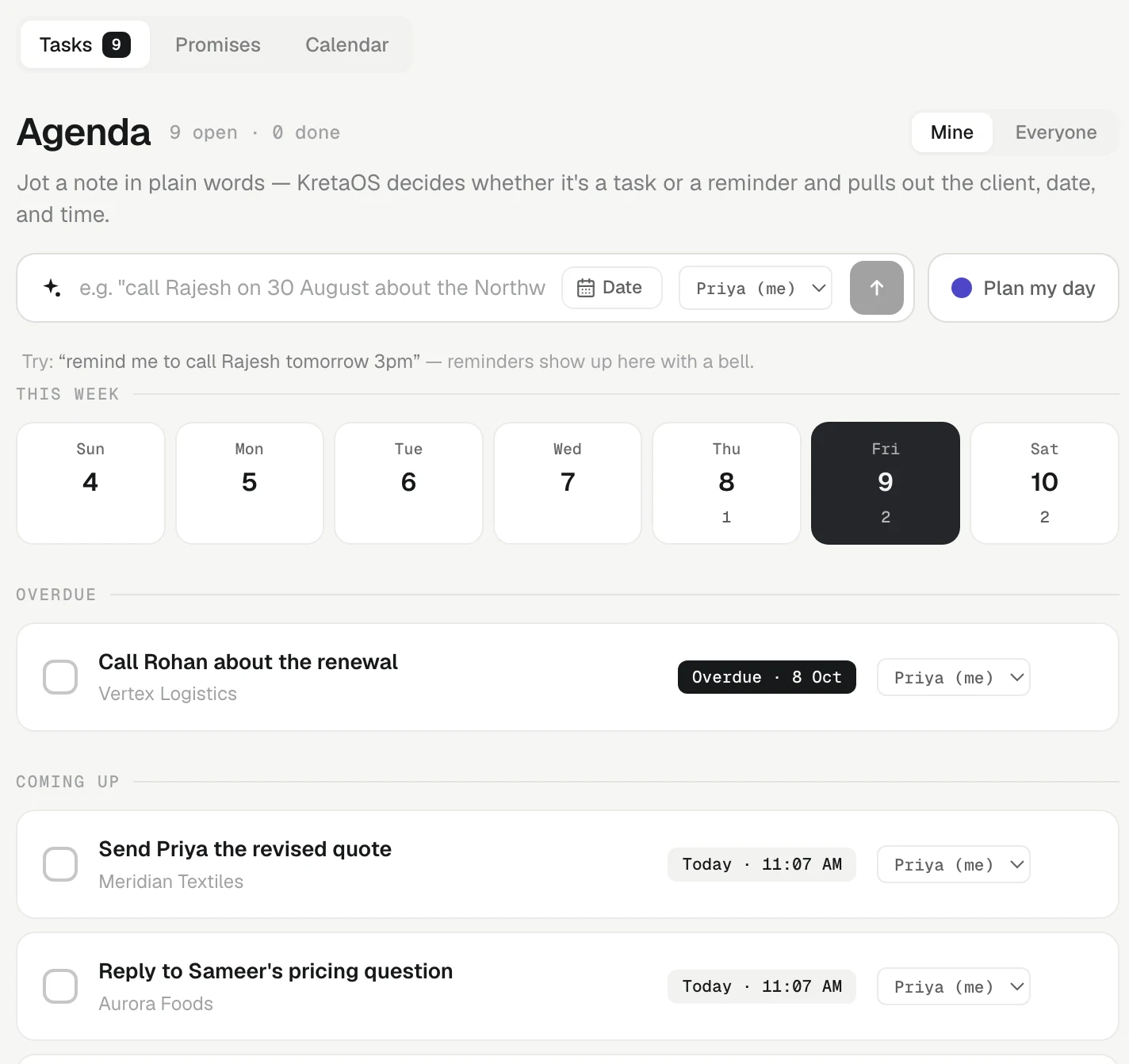
Add one in plain words
Type in the box at the top of Agenda the way you would say it:
- remind me to call Rajesh tomorrow 3pm
- send the revised quote to Mehta Textiles on Friday
- follow up with Priya about the sample on 30 August
Press Enter or the arrow button. KretaOS decides whether it is a reminder or a task, finds the client in your words, and works out the date and time. A dark strip then shows Filed as and exactly what it understood: whether it is a reminder, follow-up or to-do, the title, the day and time it is due, and the client. If it got something wrong, press Undo while the strip is showing.
Dates are bound, not guessed
- "Tomorrow", "Friday", "next week", "in 3 days" and "30 August" all work. "8/9" means 8 September.
- A time after any of them works too: "today 11am", "tomorrow 3pm", "at 9:30 tomorrow", "Friday 2pm". That task is timed, and its reminder rings at that time.
- A day with no time is due by the end of that day, so nothing is born overdue, and its chip shows only the day.
- A time that has already passed today is not used: the task is due by the end of today and the Filed as strip says the time had already passed.
- A date already in the past is moved forward, never filed as overdue.
- Want to be exact? Press Date in the box and pick the day. A picked day always beats what KretaOS read from your words; press × on it to go back to reading the text.
What you see
- Reminders have a round check and a bell chip with their day, and their time when you gave one. The next one due comes first. A reminder Ask AI added for you is marked set by AI; one more than two weeks past its time folds into a line of old reminders you can open.
- Tasks have a square check. Today comes first, then Overdue — the most recent slip first — then Coming up. An overdue task has a dark chip that reads Overdue and the day it was due, for example Overdue · 8 Oct. A task is overdue once its day has passed in your workspace's time zone, and Home counts it the same way.
- This week: a strip of days. Click a day to show only that day; click it again, or Clear, to see everything.
The header counts what is open and done. On a team, Mine shows your own tasks and the ones on Anyone — the same rule as Home. A manager can switch to My team to add the people who report to them, and an admin to Everyone.
Where else tasks come from
You will also find follow-ups you did not type:
- After you log a touch, KretaOS may add the one follow-up it calls for, such as send the quote by Monday. Review on the Log activity card shows it before you file.
- After you send a message, a follow-up appears for when the client has not replied.
- Ask AI or the voice assistant: "remind me Monday to chase the PO". Ask AI can also close or move many at once — "close all my overdue tasks" — after showing you how many and getting your yes.
Where tasks show up
Overdue and due-today tasks are ranked into Do now on Home and listed in the morning brief email at 8 AM in your workspace's time zone.
Related
- Closing a task with its outcome — When you finish a client follow-up, say what happened in one line; KretaOS logs it on the client and closes the task together.
- Snooze and triage — Push one task to a better day, or clear a pile of late follow-ups in a few taps without losing what happened.
- Assigning to a teammate — Hand a task, a client or a deal to someone on your team; they get one bell alert, and it shows up in their own lists.
- Log anything — Capture a call, WhatsApp chat, meeting or note from any page in a sentence or by speaking, dated the day it happened.
Or write to contact@tamkis.com