Invite your team
Add teammates with the right role, let each one connect their own Google, and work one shared book together.
Lesson 8 of 8 5 minUpdated 8 Oct 2026
One book, many hands
KretaOS is built for a team. Everyone on a client sees the same logged calls, notes and memory, so when a colleague picks up a client they start from everything you know, not from zero. This last lesson of the week gets your team in.
Before you invite
Two things have to be true:
- Your plan is active. A workspace that has not been activated cannot invite anyone. The order is: activate the plan, buy the seats, then invite.
- You have a free seat. You choose how many seats you pay for. If every seat is taken, the invite is refused with a message telling you so. Add seats on Settings › Billing — you pay only for the days left in the current paid period — and then invite.
Adding a teammate
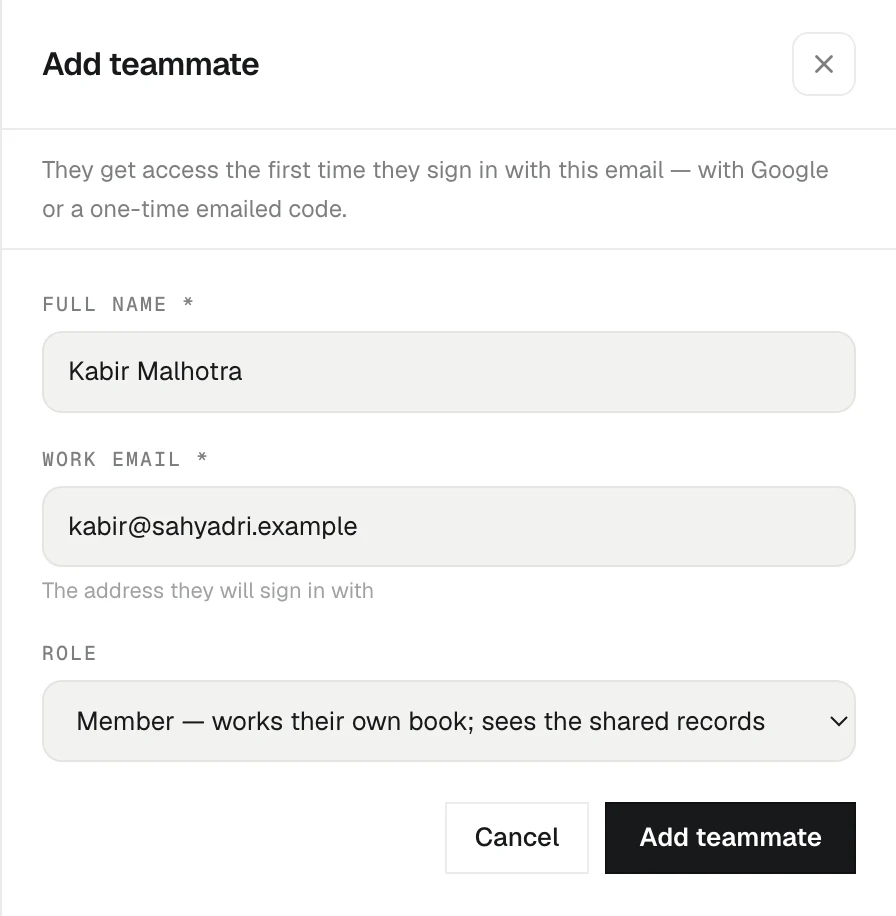
- Open Settings › Team and press Add teammate.
- Fill in Full name and Work email — the address they will sign in with.
- Pick a Role, then press Add teammate.
KretaOS emails them an invite. If the mail cannot be sent, you get an Invite link to copy and share yourself. They sign in with Google or with a one-time code emailed to that same address — there is no password to set.
There is also a quick invite row in the Team section of the Settings overview: type an email, pick a role, press Invite.
An email address can belong to only one KretaOS workspace at a time. If it is already in use elsewhere, the invite says so.
Which role
- Admin — runs the workspace: team, billing, fields, pipelines, imports and merges.
- Manager — works their own clients and also sees the numbers of the people who report to them.
- Member — works their own clients and sees the shared records. Most people are members.
- Viewer — reads everything a member can and changes nothing, not even through Ask AI.
You can change someone's role later from the Role menu on their card on the Team page, and set who they report to with Reports to. A workspace always keeps at least one admin.
After they join
Each new teammate should do the same first steps you did this week: connect their own Google on Settings › Channels — until they do, their client mail stays out of KretaOS, and their card on the Team page says Not connected — then log a touch and try Ask AI.
To put two people on one client, open the client, press Edit, and pick teammates under Team — also working this client. The client then counts as theirs too. It does not open anyone's private synced mail; that stays with the people who were on the thread.
Try it
- Open Settings › Team and press Add teammate.
- Add a colleague with their work email and the Member role.
- Ask them to sign in and connect Google from Settings › Channels.
- Open one of your clients, press Edit, and add them under Team — also working this client.
Related
- Invite a teammate — Add someone to your workspace with the right role, once your plan is active and a seat is free.
- Roles — What an Admin, a Manager, a Member and a Viewer can each see and do in KretaOS.
- Plans and seats — The three plans, how seats work, and how to add a seat or change plan from Settings › Billing.
Or write to contact@tamkis.com