Notifications and push
What the bell tells you, how to mute the alerts you don't need, and how to get them on your phone or computer.
Updated 12 Nov 2026
KretaOS only pings you when something changes: a client relationship cooling, a teammate mentioning you, a deal handed to you. Everything arrives in one place, the bell in the top bar, and can also ring on your phone or computer.
The bell
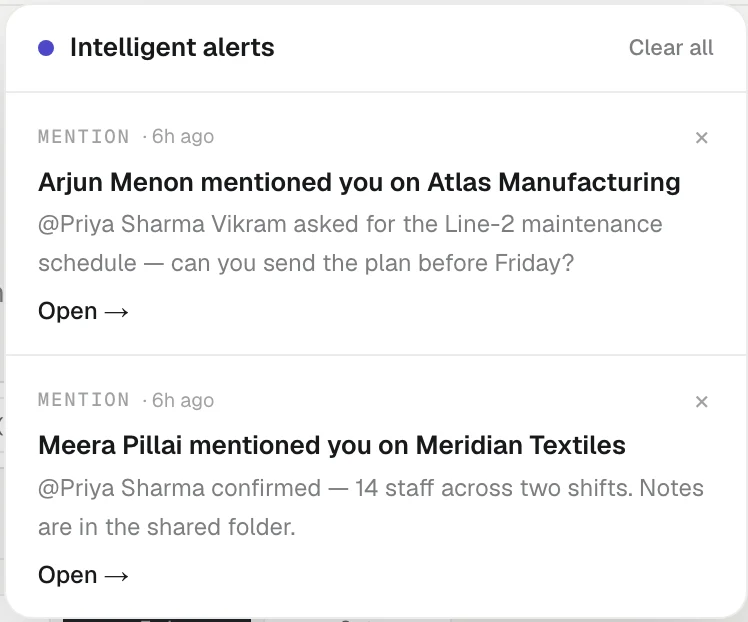
Press the bell to open Intelligent alerts. A number on the bell counts what you have not read. Each alert has a small label saying what kind it is:
- AI NOTICED: something KretaOS spotted, such as a promise slipping or a client going quiet.
- AI RECOMMENDS: a suggestion, such as adding a person you named as a contact. When there are several, Add all adds them in one go.
- RELATIONSHIP COOLING: a client dropped to a lower health band.
- DEAL RISK: a deal that needs a look.
- SUGGESTED: a touch suggested changes to a client's record (see Suggested updates after a meeting).
- BEFORE A MEETING: a client meeting on your calendar starts in about 30 minutes (see Meetings from your calendar).
- MENTION: a teammate @mentioned you in a comment. Its link opens the comment with the reply box ready.
- ASSIGNMENT: a task, client or deal was handed to you.
- IN THE LOOP, FINISHED and SLIPPED: a teammate put you in the loop on a task, it was finished (or dropped), or it slipped a week late (see Keeping a teammate in the loop).
- WHATSAPP: a client wrote on WhatsApp.
- AUTOMATION, CONSENT, MAILBOX and SYSTEM: notices about your automations, a client's consent, your Google connection, and your account.
Press an alert's link to go where it points. Press × to dismiss one, or Clear all. With nothing waiting you see You're all clear.
Mute what you don't need
Open Settings and go to Intelligent alerts. Under Your alerts, switch off any of:
- AI signal alerts: when KretaOS notices something worth your attention.
- Relationship cooling: when a client relationship starts going quiet.
- Suggested updates: when a meeting, call or mail suggests a change to a client's record.
- Before a meeting: a short brief about 30 minutes before a meeting with a client.
- Morning brief: the 8 AM brief, in your workspace's time zone — by email, Slack or both.
- Monthly report: your month in numbers, emailed on the 1st.
A mute is just for you: those alerts stop showing in your bell and on your devices.
Get alerts on this device
In the same Intelligent alerts section, switch on Notifications on this device. Your browser asks for permission; allow it. Press Send a test to check.
- It is per device. Turn it on separately on each computer or phone you use.
- What rings is what the bell shows, minus anything you muted.
- A lock screen is public. A notification shows only the alert's title. A client's own words never appear there; open KretaOS to read the rest. Only notices KretaOS wrote itself, such as a mailbox or system notice, add a line of detail.
- Tapping it opens the right page in KretaOS.
- Signing out turns it off for that device.
If it won't switch on
- "Notifications are blocked for this site": allow notifications for KretaOS in your browser's site settings, then switch it on again.
- On an iPhone, add KretaOS to your Home Screen from Safari first, then open it from there.
- "Notifications aren't switched on for this workspace yet": they are not available on your workspace yet; the bell inside KretaOS still works.
Related
- The morning brief — Your 8 AM brief — by email, Slack or both — with what is overdue, due today and coming up, and any promises that slipped.
- Assigning to a teammate — Hand a task, a client or a deal to someone on your team; they get one bell alert, and it shows up in their own lists.
- Keeping a teammate in the loop — Put teammates in the loop on a task so they hear when it is finished or slips, and Cc them on an email so they get the real mail.
- Comments and mentions — Talk about a client with your team right on its page, @mention a teammate to ring their bell, and keep it all internal.
Or write to contact@tamkis.com