Read a client page
Open any client and get the story in five seconds — the Overview, then the Timeline, Memory, Deals and About tabs.
Lesson 5 of 8 5 minUpdated 4 Nov 2026
One page per relationship
Everything KretaOS knows about a client lives on one page. Mail that synced from your inbox, calls you logged, meetings, deals, promises and facts all meet here. Open a client from Clients, from Home, or by searching with ⌘K.
Here is how to read it, top to bottom.
The header
The name, the kind of relationship (client, lead, partner or contact), and who works it: Owned by one teammate, with anyone else on the client's team. Press Edit to change the relationship type, status, tier, owner, the team, region and timezone. Quiet hours for this client are measured in its own timezone.
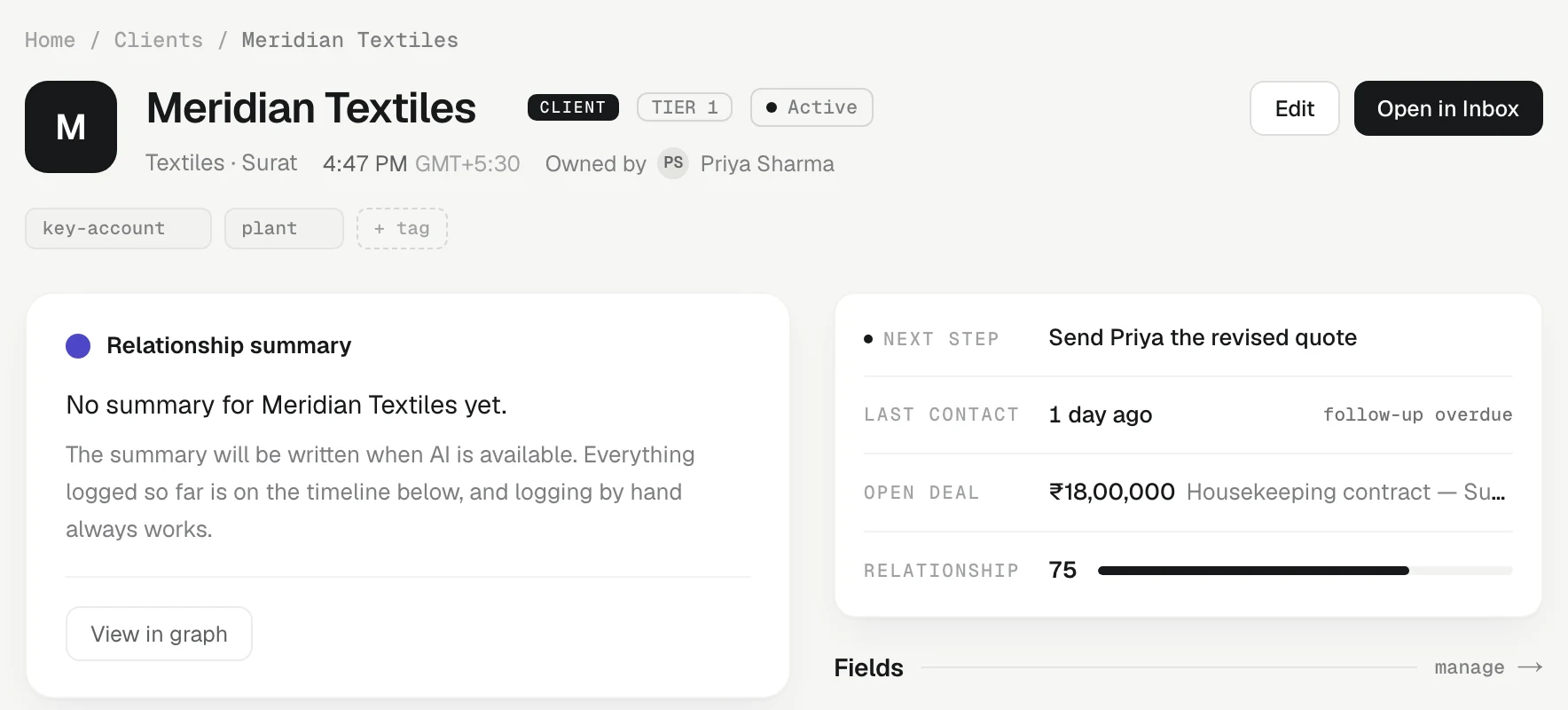
Under the header is a row of tabs: Overview, Timeline, Memory, Deals and About. A small dot on a tab means something new landed there since your last visit. The tab is part of the page's link, so a teammate you send it to lands on the same one.
Overview: the one-screen read
Suggested updates. When a recent meeting, call or mail suggests a change to the record — a deal's next stage, a field, a next step — a card at the top lists it with the words it came from. Tick to apply, cross to dismiss. Nothing changes until you choose.
Relationship summary. The AI's short read of the whole relationship: a one-line headline, then a few sentences on where things stand. It says when it was written and what it was built from. When something new is logged, it rewrites itself; you can also press the refresh button to rewrite it from today's record. From here you can press Draft follow-up, which opens Ask AI and asks it to write a message from what KretaOS knows about this client, or View in graph to see the client's memory as a map. A brand-new client with nothing logged has no summary yet — the card says so and points you to log something.
Log activity sits under the summary as one line; tap it to open the card from the last lesson. Below it are the last three touches.
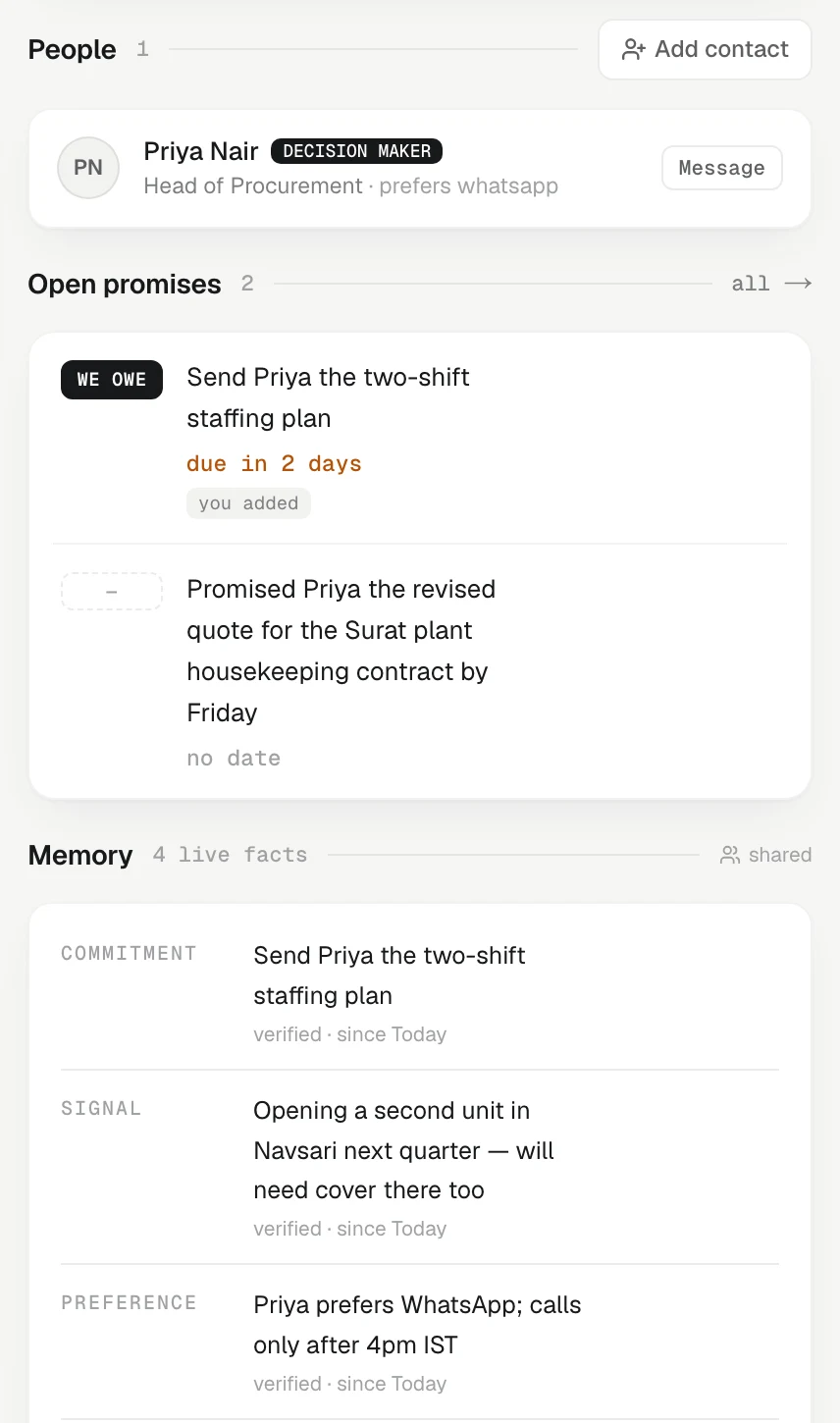
The side column (on the right on a computer, below on a phone) holds Next step, Last contact, Open deal and Relationship — the relationship score, from 0 to 100, which drops when a client goes quiet — then the People at this client and the Open promises each way.
The other tabs
- Timeline — every touch, newest first: synced mail, logged calls and notes, meetings, WhatsApp. Each entry keeps the exact words that were sent, received or logged. Synced mail follows your workspace's privacy rule, so two teammates may not see exactly the same entries. Everything logged by hand is shared.
- Memory — the facts KretaOS keeps about this client: needs, preferences, decisions, objections, plus your workspace's own Fields. Everyone on the client sees the same shared memory.
- Deals — open deals first, then closed ones.
- About — who is on the client (Owner, Team, and who is In the loop on each open task), the About text, Team comments and Research.
When memory is wrong
Memory comes from what was said, so sometimes it hears something wrong. Hover a fact (or tap it on a phone) and use Edit fact to correct it, or Remove fact to mark it as not true. The old version is kept in the history, never silently deleted, and a correction you make always outranks what the AI picked up.
Try it
- Open Clients and pick the client you logged in the last lesson.
- Read the Relationship summary, then open the Timeline tab to find your log.
- Open the Memory tab and find a fact that came from your log.
- Back on Overview, press Draft follow-up and read the draft in the Ask AI panel — nothing is sent unless you send it.
Or write to contact@tamkis.com